Masquerade as the Sunrise/yallo Home Fiber Box 2 with the WAS-110 or X-ONU-SFPP
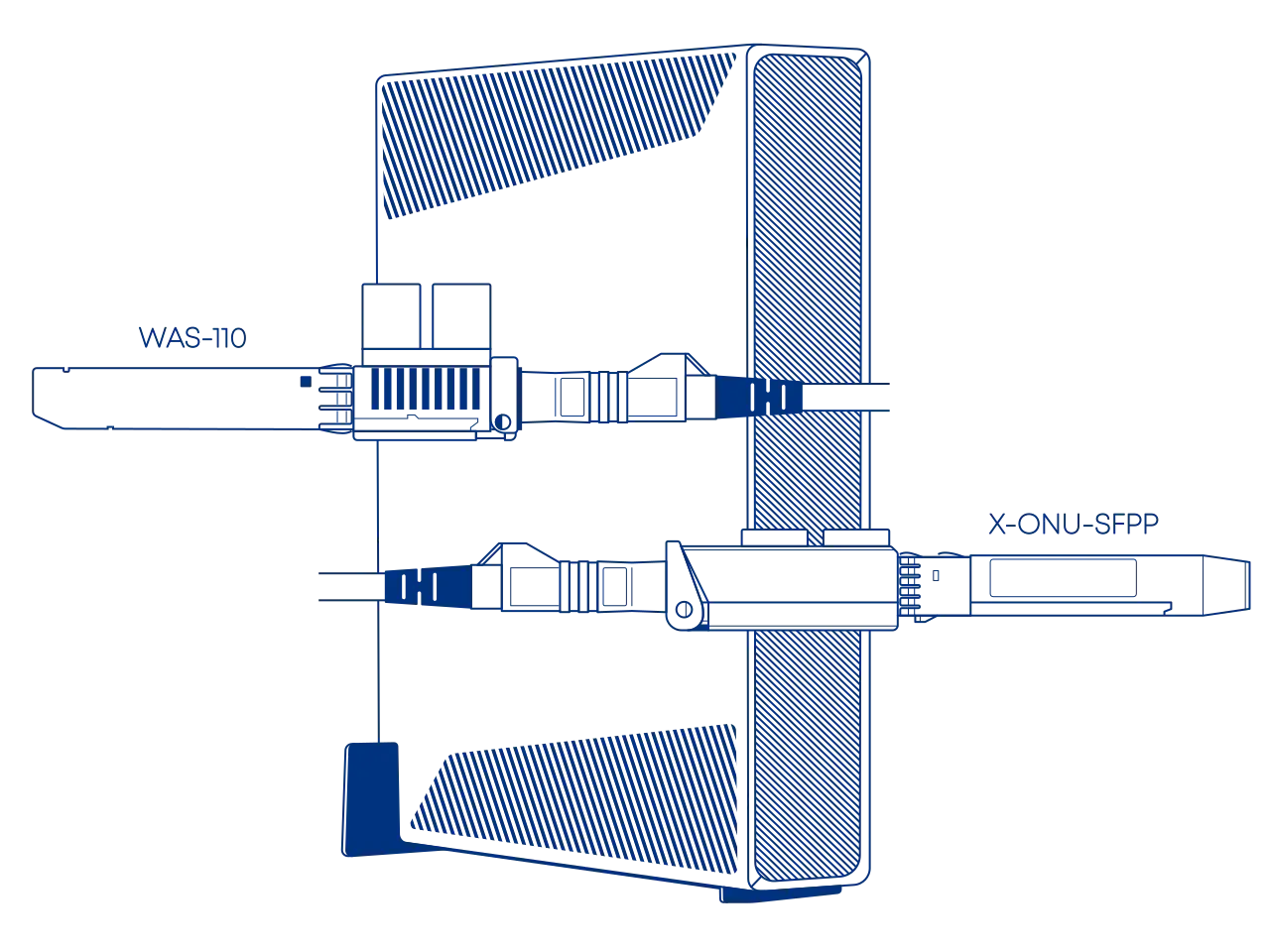
New subscriber installations
Keep the Home Fiber Box 2 in active service for roughly a week until fully provisioned and the installation ticket has been closed.
Same hardware as the Virgin Media O2 Hub 5x
The Home Fiber Box 2 is a Sagemcom F5685LGB, the same unit sold in the UK as the Hub 5x. Sunrise ships it under its own name and through its yallo brand. The one operator-specific difference is the mandatory Registration ID.
Common misconceptions and answers
- Are the WAS-110, X-ONU-SFPP, HLX-SFPX, or WT-ONU-STICK a gateway/router?
-
No. These are SFU ONTs (not HGUs) that convert Ethernet to PON; they do not provide Layer 7 gateway functions (NAT, DHCP, etc.) A separate gateway/router is required for internet access.
- Are the gateway MAC and IP Host MAC attribute the same?
-
No, they are different. The IP Host MAC is hardcoded as
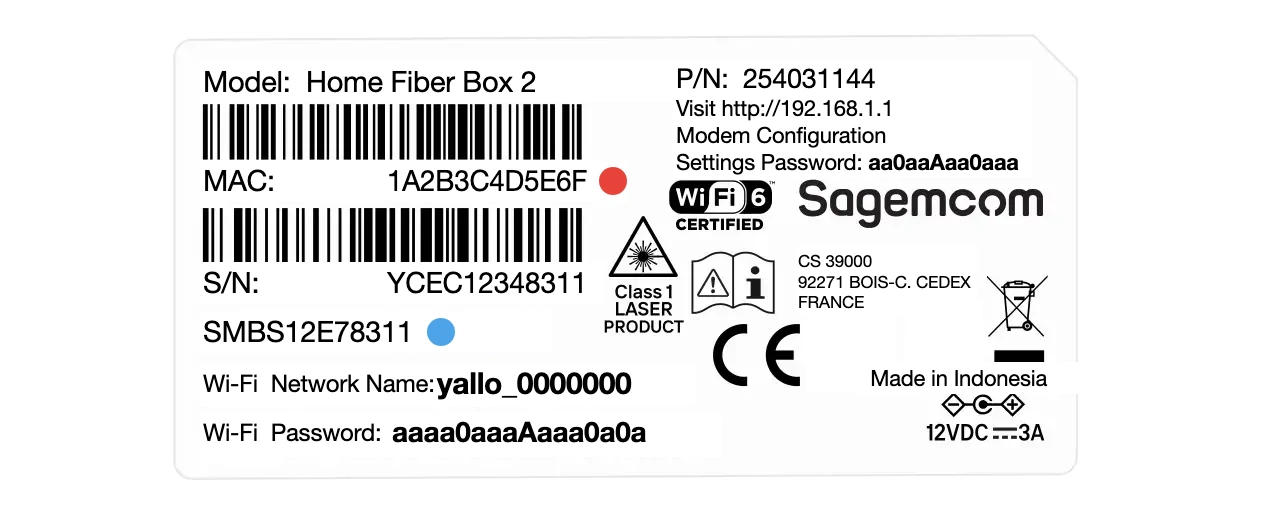
C4:EB:43:00:00:01, while the gateway MAC is the value found on the label located at the bottom of the Home Fiber Box 2.
Purchase Hardware
ONT
The WAS-110, X-ONU-SFPP, and WT-ONU-STICK are available from select resellers worldwide; purchase at your discretion. We assume no responsibility or liability for the listed resellers.
Purchase SC/APC variant
Although Sunrise/yallo terminate their fiber at the ONT using LC/APC connectors, purchasing an SC/APC ONT guarantees portability and compatibility.
Angled Physical Contact (APC) tips are polished to 8 degrees. This eliminates signal reflections on the fiber.
Never mismatch APC (green) and UPC (blue). This causes signal loss and can permanently damage the fiber faces.
-
WAS-110
-
X-ONU-SFPP WAS-110 substitute
-
WT-ONU-STICK X-ONU-SFPP substitute

LC/APC to SC/APC adapter or cable
A Female LC/APC to Male SC/APC adapter is necessary for connecting to the WAS-110 or X-ONU-SFPP with the provisioned LC/APC cable, or a Male LC/APC to Male SC/APC patch cable, both of which can be purchased at https://www.amazon.com/.
Pre-configuration
Before beginning the ONT configuration, ensure you have addressed the following networking requirements to enable successful communication with the PON.
DHCP MAC Spoofing
The ISP’s DHCP server identifies your connection via the Unique MAC address of the original equipment. To ensure the ISP "trusts" your new hardware immediately, you must clone the Home Fiber Box 2 MAC address onto your gateway's WAN physical interface.
The "Lease Window" Issue
ISP DHCP leases are often tied to a specific hardware ID for a set duration. If you swap hardware without cloning the MAC, the server will detect an "unauthorized" device and refuse to issue a WAN IP until the old lease expires.
LCT Access Route
To install, upgrade, and configure the ONT, your gateway must be able to reach its Local Craft Terminal (LCT) interface. Follow the Accessing the ONT guide to set up the proper network routing between your gateway and the ONT management plane.
Install ONT firmware
You must first install the 8311 community firmware for VEIP support to masquerade as the Home Fiber Box 2 on XGS-PON.
Upgrading a pre-flashed 8311 WAS-110 or X-ONU-SFPP
If your WAS-110 came with 8311 firmware pre-installed, you do not need to follow the full installation guide below. Instead, you can go directly to the Supplementary Upgrades section to re-install the official 8311 community build to both A and B partitions.
There are two (2) methods to install the 8311 community firmware onto the WAS-110, outlined in the following guides:
-
Method 1: recommended
-
Method 2
The X-ONU-SFPP 8311 community firmware installation requires a two-step process and is more prone to failure or bricking.
This process is not thoroughly documented and can lead to a bricked device
- Step 1: Install the Azores bootloader
-
Skip past to the solution in the following issue tracker on how to install the Azores bootloader.
- Step 2: Multicast upgrade
-
Follow through the WAS-110 multicast upgrade and community firmware recovery guide to install the 8311 community firmware.
Configure ONT settings
To masquerade as the Home Fiber Box 2, you will need its ONT serial number and its WAN MAC address, both of which are located on the bottom label as depicted below.
The PON serial number is not labelled
The Home Fiber Box 2 label has no PON S/N: field. The PON serial is the bare SMBS… string printed on its own line directly beneath the S/N: value, with no field name in front of it. Do not confuse it with the S/N: above it, which begins YCEC… and is not what the OLT authenticates on.
Use your preferred setup method and carefully follow the steps to avoid unnecessary downtime and troubleshooting:
Via web recommended


-
Within a web browser, navigate to https://192.168.11.1/cgi-bin/luci/admin/8311/config and, if asked, input your root password.
-
From the 8311 Configuration page, on the PON tab, fill in the configuration with the following values:
Reminder
Replace the
 PON Serial Number and the
  Registration ID with the values derived from your own Home Fiber Box 2 label.
Attribute Value Mandatory Remarks PON Serial Number (ONT ID) SMBS…  PON S/N
Equipment ID MERCV3X Hardware Version 1.0 Sync Circuit Pack Version Software Version A 7.8.3-2410.5 Version listing Software Version B 7.8.3-2410.5 Version listing MIB File /etc/mibs/prx300_1V_bell.ini VEIP and more IP Host MAC Address C4:EB:43:00:00:01 Shared hardcoded MAC Registration ID (HEX) 314132423343344435453646 see below -
From the 8311 Configuration page, on the ISP Fixes tab, disable Fix VLANs from the drop-down.
Identify VLANs (Optional: Sunrise/yallo uses VLAN
131for internet)Once configuration is complete and the fiber is connected, wait for successful authentication (O5 state). You can then use the VLAN Table Analyser to identify service VLANs by copying the table from the VLANs page (https://192.168.11.1/cgi-bin/luci/admin/8311/vlans) and pasting it into the tool.
-
Save changes and reboot from the System menu.
Via shell
-
Login over secure shell (SSH).
ssh root@192.168.11.1 -
Configure the 8311 U-Boot environment.
Highlighted lines are mandatory
Replace the
8311_gpon_sn and the 8311_reg_id_hex with values derived from your own Home Fiber Box 2 label.fwenv_set mib_file fwenv_set -8 iphost_mac !C4:EB:43:00:00:01 #(1)! fwenv_set -8 gpon_sn SMBS... # (2)! fwenv_set -8 equipment_id MERCV3X fwenv_set -8 hw_ver 1.0 fwenv_set -8 cp_hw_ver_sync 1 fwenv_set -8 sw_verA 7.8.3-2410.5 # (3)! fwenv_set -8 sw_verB 7.8.3-2410.5 fwenv_set -8 mib_file /etc/mibs/prx300_1V_bell.ini fwenv_set -8 reg_id_hex 314132423343344435453646 # (4)! fwenv_set -8 fix_vlans 0- Hardcoded MAC address used by all subscribers
- PON S/N
- Version listing
- Registration ID. Your WAN MAC as uppercase ASCII, hex-encoded
-
Verify the 8311 U-boot environment and reboot.
fw_printenv | grep ^8311
reboot
Registration ID
PLOAM Registration ID
Sunrise/yallo OLTs require a PLOAM Registration ID. With the field empty the module stays in O2, Serial number state even with correct optics and a correct PON serial number.
The value is your original Home Fiber Box 2's WAN MAC address, as an UPPERCASE ASCII string, not as raw MAC bytes. This is the same MAC you clone onto your gateway's WAN interface in Pre-configuration,.
Example for a WAN MAC of 1A:2B:3C:4D:5E:6F:
| Step | Value |
|---|---|
| WAN MAC from the label | 1A:2B:3C:4D:5E:6F |
| As an uppercase string, colons removed | 1A2B3C4D5E6F |
| Hex-encoded (this is what you enter) | 314132423343344435453646 |
printf '%s' "1A2B3C4D5E6F" | xxd -p
# 314132423343344435453646
Confirm the value took after rebooting. pon rig reports the registration ID as decimal byte values, which should decode back to your MAC string:
pon rig
# reg_id = "49 65 50 66 51 67 52 68 53 69 54 70 0 0 ..."   # = "1A2B3C4D5E6F"
Confirming you are in this failure case
With an empty or wrong Registration ID, the downstream PLOAM counters show the OLT repeatedly ranging you and then kicking you off:
pon pdcg
# assign_onu_id=N   ranging_time=N   req_reg=N   deact_onu=N   disable_ser_no=0
req_reg is the OLT asking for the registration ID and deact_onu is it deactivating you for the wrong answer. disable_ser_no=0 proves this is not a duplicate-serial problem.
Verify ONT connectivity
Hot plug fiber cable
Avoid direct eye contact with the end of the fiber optic cable
After rebooting the WAS-110 or X-ONU-SFPP, safely remove the LC/APC fiber optic cable from the Home Fiber Box 2 and either connect it to an SC/APC adapter to the WAS-110 or X-ONU-SFPP, or replace the entire fibre with one suitable for the module.

- Navigate to https://192.168.11.1/cgi-bin/luci/admin/status/overview and, if asked, input your root password.
- From the PON Status section, evaluate that the RX Power and TX Power are within spec.
For troubleshooting, please read the Troubleshoot connectivity issues with the WAS-110 guide's Optical status section.
Validate OLT authentication
Check for O5.1 PLOAM status
- Navigate to https://192.168.11.1/cgi-bin/luci/admin/status/overview and, if asked, input your root password.
- From the PON Status section, verify that the PON PLOAM Status is in an 05.1, Associated state.
For troubleshooting, please read the Troubleshoot connectivity issues with the WAS-110 guide's PLOAM status section.
Check for OLT associated VLAN filters
- Navigate to https://192.168.11.1/cgi-bin/luci/admin/8311/vlans and, if asked, input your root password.
- From the VLAN Tables page, if the textarea states "No Extended VLAN Tables Detected", the ONT configuration has not satisfied the OLT.
Router tips
Detailed router setup falls outside the scope of the documentation due to the multitude of available solutions.
- Apply the pre-configuration requirements, including the WAN MAC clone.
- Configure the WAN VLAN to
131. - Configure the WAN for DHCP mode.
Other VLANs seen on the Sunrise/yallo OMCI VLAN table
| VLAN | Role |
|---|---|
131 | Internet (data), tag your WAN here |
121 | Operator management (TR-069/ACS plane) |
117 | Voice (VoIP/SIP) |
Managed switch tips
- Filter or disable any Layer 2 management protocols (e.g., (R)STP) and discovery protocols (e.g., LLDP, CDP, FDP, MNDP, RoMON).
Software versions
The Home Fiber Box 2 uses CWMP instead of OMCI for firmware updates. While the OLT rarely requires approval for specific software versions, keeping the WAS-110 or X-ONU-SFPP up-to-date is beneficial but not strictly necessary.
If you would like to help us maintain the software listing, you can contribute new versions via the 8311 Discord community server or by submitting a Pull Request on GitHub.
| Software Version |
|---|
| 7.8.3-2410.5 |
| 4.11.1-2309.6 |
Credits
The Registration ID derivation for Sunrise/yallo was originally documented by smma.ch.