Masquerade as the Salt Mobile SA Fiber Box X6 with the WAS-110 or X-ONU-SFPP
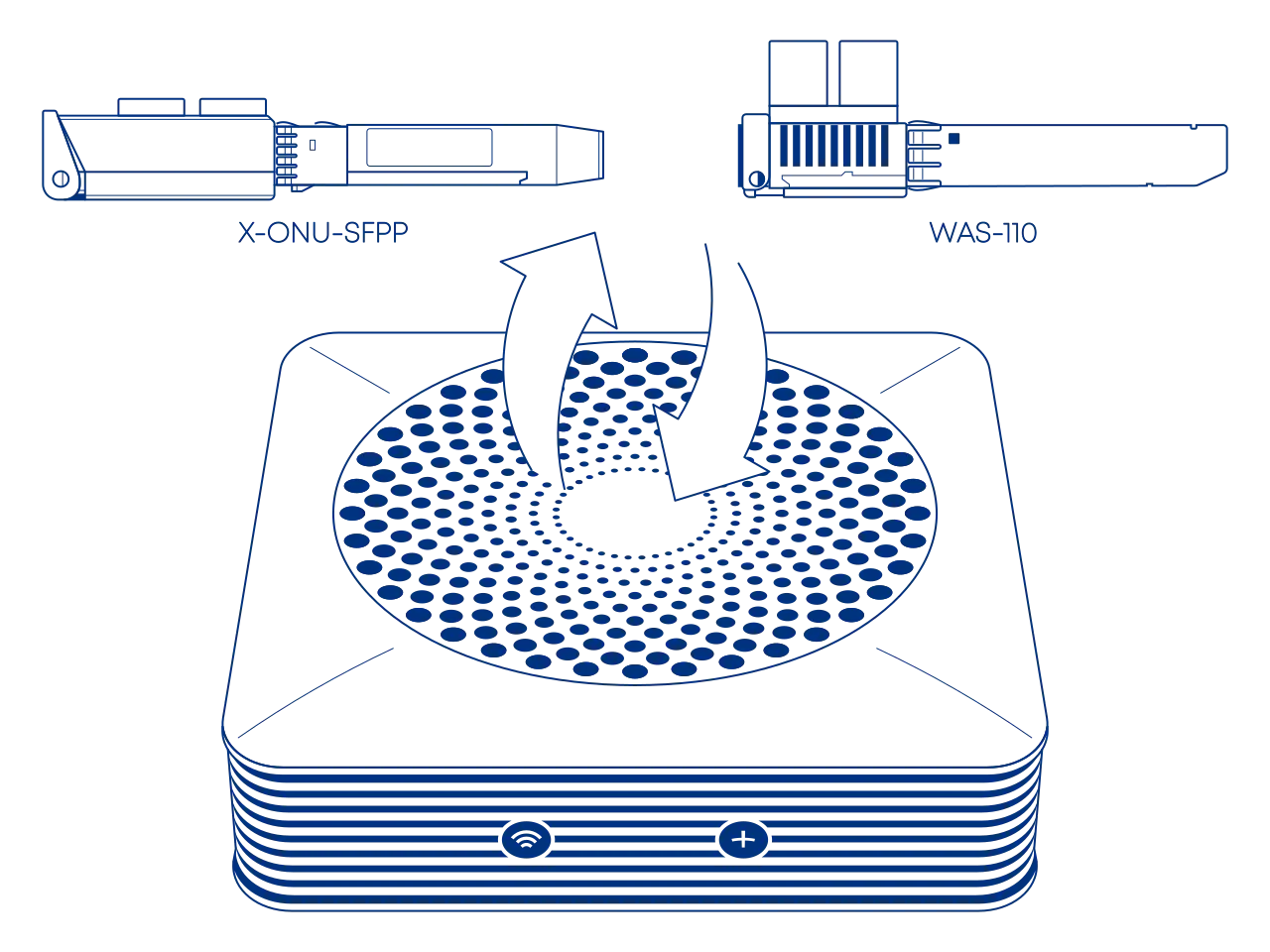
New installations
Keep the Fiber Box X6 in active service for roughly a week until fully provisioned and the installation ticket has been closed.
Common misconceptions and answers
- Do the WAS-110, X-ONU-SFPP, HLX-SFPX, or WT-ONU-STICK ONT's support GPON wavelengths (1490 nm downstream and 1310 nm upstream)?
-
No, the BOSA in these ONTs are calibrated exclusively for XGS-PON wavelengths: 1577 nm downstream and 1270 nm upstream. They use the Macom M02180 (WAS-110), Macom M02181 (X-ONU-SFPP), and Semtech GN28L96 (HLX-SFPX) laser drivers, which are designed specifically for 10G-PON applications.
- Are the WAS-110, X-ONU-SFPP, HLX-SFPX, or WT-ONU-STICK a gateway/router?
-
No. These are SFU ONTs (not HGUs) that convert Ethernet to PON; they do not provide Layer 7 gateway functions (NAT, DHCP, etc.) A separate gateway/router is required for internet access.
Verify XGS-PON service
Your fiber internet subscription can use different underlying technologies. Use one of these methods to confirm if your connection uses XGS-PON:
- XMO client
- Transceiver (SFP module) recommended
Via XMO client
The open-source XMO client1 requires Python 3.10 or newer. For installation instructions, see the Real Python guide: Python 3 Installation & Setup Guide.
Install client
Open a terminal and install the open-source XMO client using:
py --version # (1)!
py -m venv venv
venv\Scripts\activate
py -m pip install --upgrade pip
pip install https://github.com/up-n-atom/sagemcom-modem-scripts/releases/download/v0.0.11/xmo_remote_client-0.0.11-py3-none-any.whl
- Verify the installed Python version is >= 3.10
python3 --version # (1)!
python3 -m venv .venv
. .venv/bin/activate
python3 -m pip install --upgrade pip
pip3 install https://github.com/up-n-atom/sagemcom-modem-scripts/releases/download/v0.0.11/xmo_remote_client-0.0.11-py3-none-any.whl
- Verify the installed Python version is >= 3.10
Execute client
Finally, to determine if you have XGS-PON service, execute the following:
xmo-remote-client --host=192.168.1.1 --password=<password> get-value --path "Device/Optical/Interfaces/Interface[OPTICAL0]/Type" #(1)!
- Replace the
<password>argument.
Via transceiver recommended

- Engage the bale clasp to release the latch and pull out the transceiver.
- Inspect the label for XGS-PON or 1270 TX.
Purchase WAS-110/X-ONU-SFPP ONT
The WAS-110 and X-ONU-SFPP are available from select resellers worldwide; purchase at your discretion. We assume no responsibility or liability for the listed resellers.
Purchase SC/APC variant; if unavailable, add an SC/APC (female) to SC/UPC (male) 0dB attenuator for conversion.
Salt terminateis their fiber at the ONT using SC/APC (green) connectors.
Angled Physical Contact (APC) tips are polished to 8 degrees. This eliminates signal reflections on the fiber.
Never mismatch SC/APC (green) and SC/UPC (blue). This causes signal loss and can permanently damage the fiber faces.
-
WAS-110
-
X-ONU-SFPP
Pre-configuration
Before beginning the ONT configuration, ensure you gathered the required data from the Fiber Box X6 and have addressed the following networking requirements to enable successful communication with the PON.
Extract required attributes
Install the XMO client as described earlier in the guide and extract the following OMCI values to masquerade as the Fiber Box X6.
PON serial number
The PON serial number uniquely identifies your ONT within the network.
xmo-remote-client --host=192.168.1.1 get-value --path "Device/Optical/G988/EquipmentManagement/OnuG/SerialNumber"
Web UI Box Serial Number and GPON Serial Number...
The GPON Serial Number is a hex-encoded string where 47464142 equals GFAB in ASCII and matches the Box Serial Number.
Software versions
ONTs utilize an A/B architecture for resilience; consequently, two software versions are identified. These are stored as hex-encoded strings and must be processed through a hex-to-ASCII converter to be read in a human-readable format and used for configuration.
xmo-remote-client --host=192.168.1.1 get-value --path "Device/Optical/G988/EquipmentManagement/SoftwareImages/SoftwareImage[@uid=1]/Version"
xmo-remote-client --host=192.168.1.1 get-value --path "Device/Optical/G988/EquipmentManagement/SoftwareImages/SoftwareImage[@uid=2]/Version"
ONU mode (MIB file)
The ONU mode will be either PPTP (represented by MIB files ending in 'U') or VEIP (represented by MIB files ending in 'V').
xmo-remote-client --host=192.168.1.1 get-onu-mode
DHCP MAC Spoofing
The ISP’s DHCP server identifies your connection via the Unique MAC address of the original equipment. To ensure the ISP "trusts" your new hardware immediately, you must clone the Fiber Box X6 MAC address onto your gateway's WAN physical interface. The MAC address can be found on the underside label.
LCT Access Route
To install, upgrade, and configure the ONT, your gateway must be able to reach its Local Craft Terminal (LCT) interface. Follow the Accessing the ONT guide to set up the proper network routing between your gateway and the ONT mangement plane.
Install ONT firmware
You must first install the 8311 community firmware for VEIP support to masquerade as the Fiber Box X6 on XGS-PON.
Upgrading a pre-flashed 8311 WAS-110 or X-ONU-SFPP
If your WAS-110 came with 8311 firmware pre-installed, you do not need to follow the full installation guide below. Instead, you can go directly to the Supplementary Upgrades section to re-install the official 8311 community build to both A and B partitions.
There are two (2) methods to install the 8311 community firmware onto the WAS-110, outlined in the following guides:
-
Method 1: recommended
-
Method 2
The X-ONU-SFPP 8311 community firmware installation requires a two-step process and is more prone to failure or bricking.
This process is not thoroughly documented and can lead to a bricked device
- Step 1: Install the Azores bootloader
-
Skip past to the solution in the following issue tracker on how to install the Azores bootloader.
- Step 2: Multicast upgrade
-
Follow through the WAS-110 multicast upgrade and community firmware recovery guide to install the 8311 community firmware.
Configure ONT settings
To masquerade as the Fiber Box X6, you will need its ONT serial number and other identifiers you extracted previously.
Use your preferred setup method and carefully follow the steps to avoid unnecessary downtime and troubleshooting:
Via web recommended


-
Within a web browser, navigate to https://192.168.11.1/cgi-bin/luci/admin/8311/config and, if asked, input your root password.
-
From the 8311 Configuration page, on the PON tab, fill in the configuration with the following values:
All attributes below are mandatory
Attribute Value Remarks PON Serial Number (ONT ID) GFAB… PON serial number Equipment ID NJJ Fibre Box Hardware Version XGSR1644 Sync Circuit Pack Version 
Software Version A SGCk10005062 Software Versions Software Version B SGCk100041C6 Software Versions MIB File /etc/mibs/prx300_1V_bell.ini ONU mode IP Host MAC Address AA:BB:CC:DD:EE:FF Found on Transceiver label -
From the 8311 Configuration page, on the ISP Fixes tab, disable Fix VLANs from the drop-down.
Identify VLANs (Optional: Salt uses VLAN
30for Internet and40for VOIP)Once configuration is complete and the fiber is connected, wait for successful authentication (O5 state). You can then use the VLAN Table Analyser to identify service VLANs by copying the table from the VLANs page (https://192.168.11.1/cgi-bin/luci/admin/8311/vlans) and pasting it into the tool.
-
Save changes and reboot from the System menu.
Via shell
-
Login over secure shell (SSH).
ssh root@192.168.11.1 -
Configure the 8311 U-Boot environment.
All attributes below are mandatory
fwenv_set mib_file fwenv_set -8 iphost_mac AA:BB:CC:DD:EE:FF #(1)! fwenv_set -8 gpon_sn GFAB... #(2)! fwenv_set -8 equipment_id "NJJ Fibre Box" fwenv_set -8 hw_ver XGSR1644 fwenv_set -8 cp_hw_ver_sync 1 fwenv_set -8 sw_verA SGCk10005062 #(3)! fwenv_set -8 sw_verB SGCk100041C6 fwenv_set -8 mib_file /etc/mibs/prx300_1V_bell.ini #(4)! fwenv_set -8 fix_vlans 0- Found on Transceiver label
- PON serial number
- Software Versions
- ONU mode
-
Verify the 8311 U-boot environment and reboot.
fw_printenv | grep ^8311
reboot
Verify ONT connectivity
Hot plug fiber cable
Avoid direct eye contact with the end of the fiber optic cable
After rebooting the WAS-110 or X-ONU-SFPP, safely remove the SC/APC fiber optic cable from the Fiber Box X6 and connect it to the WAS-110 or X-ONU-SFPP.

- Navigate to https://192.168.11.1/cgi-bin/luci/admin/status/overview and, if asked, input your root password.
- From the PON Status section, evaluate that the RX Power and TX Power are within spec.
For troubleshooting, please read the Troubleshoot connectivity issues with the WAS-110 guide's Optical status section.
Validate OLT authentication
Check for O5.1 PLOAM status
- Navigate to https://192.168.11.1/cgi-bin/luci/admin/status/overview and, if asked, input your root password.
- From the PON Status section, verify that the PON PLOAM Status is in an 05.1, Associated state.
For troubleshooting, please read the Troubleshoot connectivity issues with the WAS-110 guide's PLOAM status section.
Check for OLT associated VLAN filters
- Navigate to https://192.168.11.1/cgi-bin/luci/admin/8311/vlans and, if asked, input your root password.
- From the VLAN Tables page, if the textarea states "No Extended VLAN Tables Detected", the ONT configuration has not satisfied the OLT.
Router tips
Salt’s use of CGNAT restricts inbound traffic, meaning you cannot self-host services, may experience connectivity issues with gaming and peer-to-peer applications, and ultimately lose control over how your own connection can be used.
- Configure the WAN interface for DHCP mode.
- Configure the WAN VLAN to
30.
Managed switch tips
- Filter or disable any Layer 2 management protocols (e.g., (R)STP) and discovery protocols (e.g., LLDP, CDP, FDP, MNDP, RoMON).
Based on contributions from T G (8311 Discord), this guide is subject to change. Please note that some details may be incomplete or superseded by newer firmware versions.