Masquerade as the Play KAON PG5298A with the WAS-110 or X-ONU-SFPP
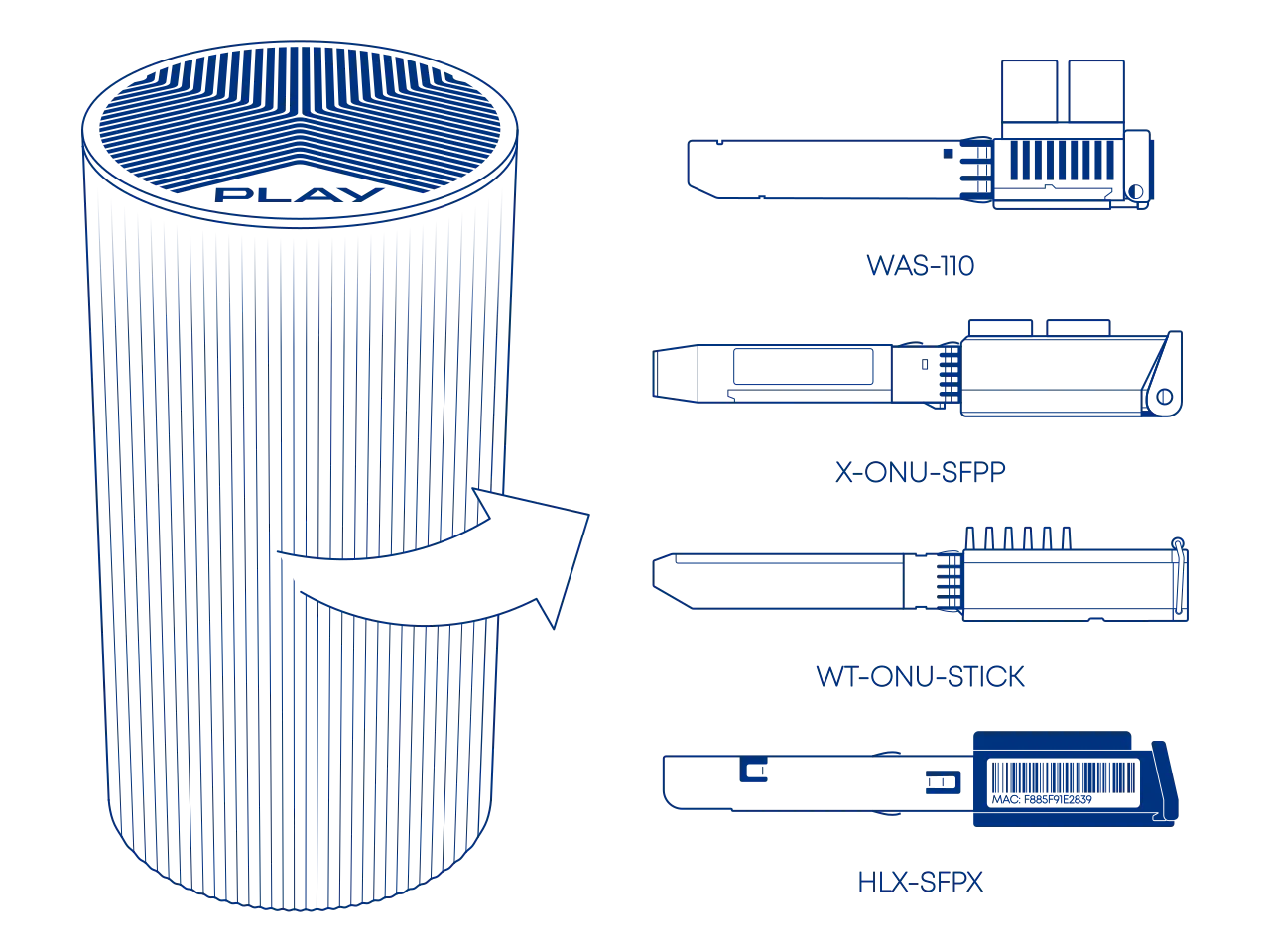
Purchase a WAS-110 or X-ONU-SFPP
The WAS-110 and X-ONU-SFPP are available from select resellers worldwide. To streamline the process, some resellers are pre-flashing the 8311 community firmware and highly recommended for the X-ONU-SFPP. Purchase at your discretion; we take no responsibility or liability for the listed resellers.
X-ONU-SFPP Value-Added Resellers
Common misconceptions and answers
- Do the WAS-110, X-ONU-SFPP, HLX-SFPX, or WT-ONU-STICK ONT's support GPON wavelengths (1490 nm downstream and 1310 nm upstream)?
-
No, the BOSA in these ONTs are calibrated exclusively for XGS-PON wavelengths: 1577 nm downstream and 1270 nm upstream. They use the Macom M02180 (WAS-110), Macom M02181 (X-ONU-SFPP), and Semtech GN28L96 (HLX-SFPX) laser drivers, which are designed specifically for 10G-PON applications.
- Are the WAS-110, X-ONU-SFPP, HLX-SFPX, or WT-ONU-STICK a gateway/router?
-
No. These are SFU ONTs (not HGUs) that convert Ethernet to PON; they do not provide Layer 7 gateway functions (NAT, DHCP, etc.) A separate gateway/router is required for internet access.
Requirements
In addition to a WAS-110 or X-ONU-SFPP, you will need:
- the PON serial number of the original KAON gateway;
- the original gateway base MAC address and, preferably, its Internet WAN service MAC;
- a router capable of DHCP/IPoE on VLAN
35and WAN MAC cloning; - a way to reach the ONT management address, normally
192.168.11.1/24.
Follow the Accessing the ONT guide before continuing.
Record the subscriber-specific values
-
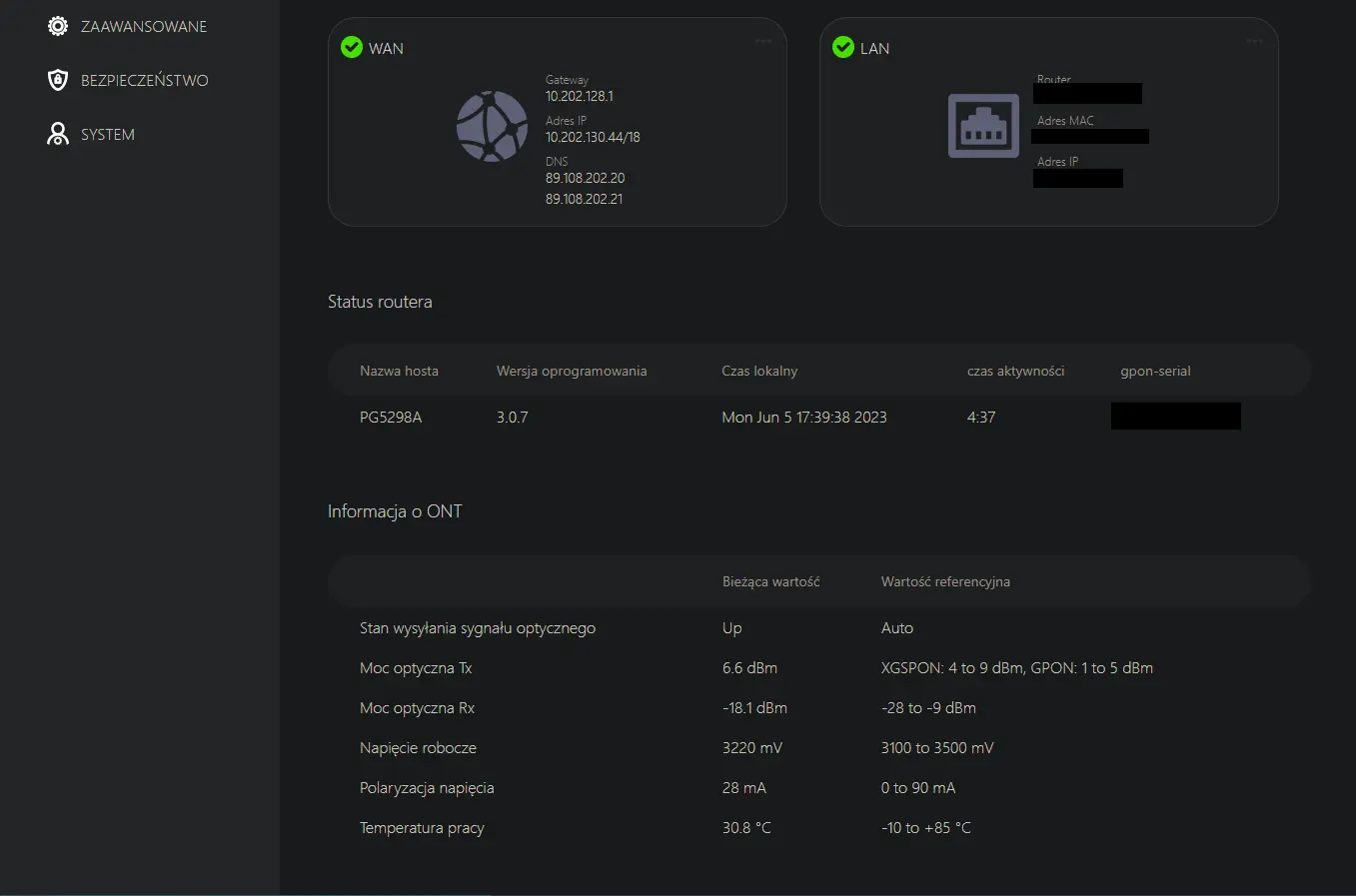
Sign in to the original KAON PG5298A gateway and record its Equipment ID, Hardware Version, Software Version, and PON serial number. Use the gateway label for values also printed there.
-
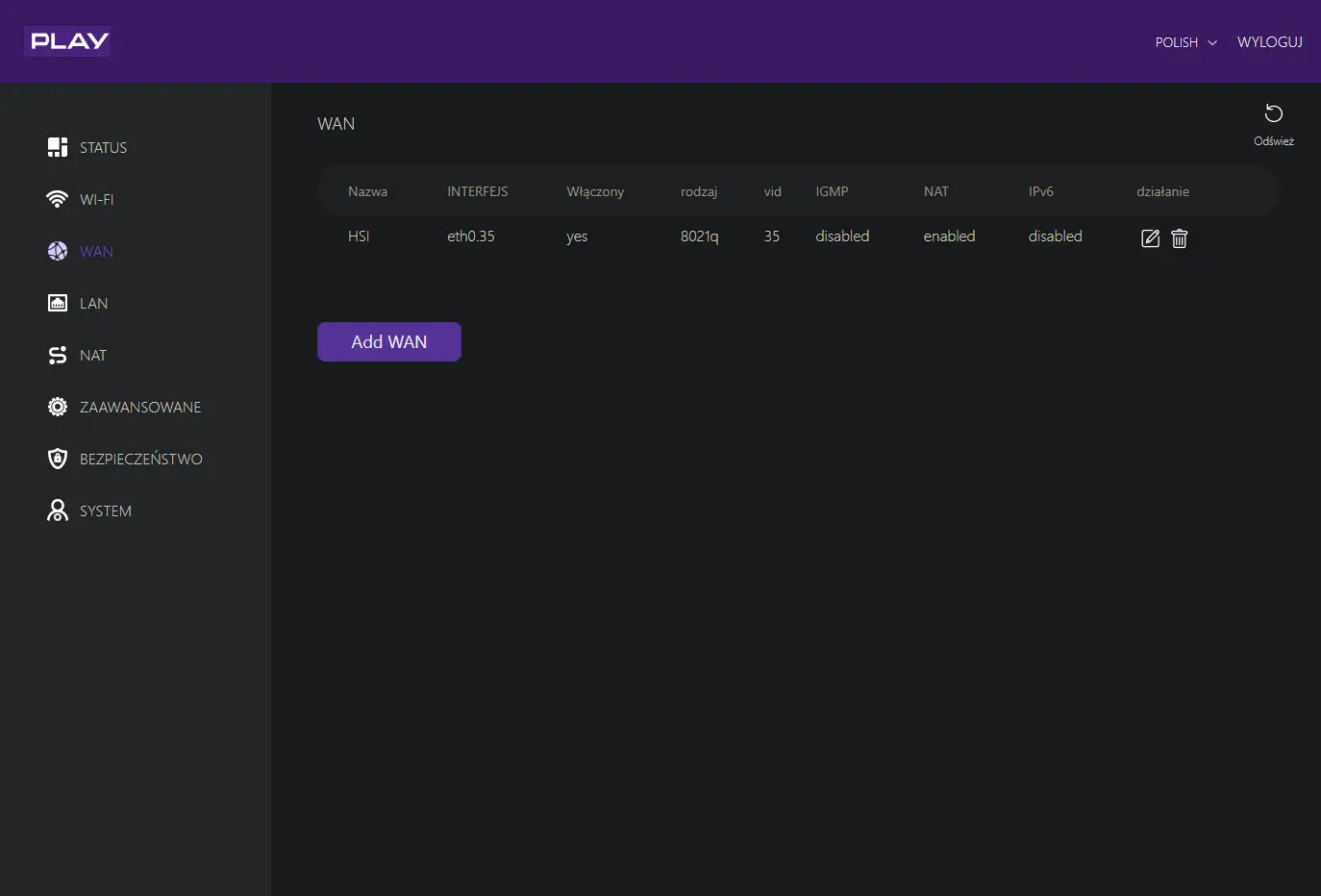
Record the Internet WAN service VLAN ID and MAC address from the gateway's web interface. Play normally uses VLAN
35.
PON serial number
Record the PON serial shown by the original KAON web interface or label. It has the form:
KAONxxxxxxxx
The first four characters are the vendor ID. The final eight characters are hexadecimal and must be copied exactly.
MAC addresses
Record the base MAC printed on the gateway label or shown in its web interface.
Install the 8311 community firmware
As a prerequisite to masquerading as the KAON PG5298A, the 8311 community firmware is recommended and required for the remainder of this guide. If you purchased a pre-flashed WAS-110 or X-ONU-SFPP, skip past to the masquerade setup.
There are two methods to install the 8311 community firmware onto the WAS-110, outlined in the following guides:
- Method 1: recommended
- Method 2:
The X-ONU-SFPP 8311 community firmware installation requires a two-step process and is more prone to failure and bricking.
This process is not thoroughly documented and can lead to a bricked device
- Step 1: Install the Azores bootloader
-
Skip past to the solution in the following issue tracker on how to install the Azores bootloader.
- Step 2: Multicast upgrade
-
Follow through the WAS-110 multicast upgrade and community firmware recovery
Masquerade setup
To successfully masquerade on XGS-PON, the original ONT serial number is mandatory. It, along with other key identifiers, is available from the web UI or label of the KAON PG5298A.
from the web UI recommended
As of version 2.4.0 https:// is supported and enabled by default
All http:// URLs will redirect to https:// unless the 8311_https_redirect environment variable is set to 0 or false.


-
Within a web browser, navigate to https://192.168.11.1/cgi-bin/luci/admin/8311/config and, if asked, input your root password.
-
From the 8311 Configuration page, on the PON tab, fill in the configuration with the following values:
!!! reminder Replace the redacted PON serial number and IP Host MAC Address with your gateway's values.
| Attribute | Value | Mandatory | Remarks |
|---|---|---|---|
| PON Serial Number (ONT ID) | KAONxxxxxxxx |  | Use the subscriber-specific value |
| Vendor ID | KAON | | |
| Equipment ID | PG5298A | | |
| Hardware Version | PG5298A_1.0 | | |
| Sync Circuit Pack Version | Enabled | | 8311_cp_hw_ver_sync=1 |
| Software Version A | 3.0.48 | Active image | |
| Software Version B | 3.0.48 | Inactive image | |
| Override active firmware bank | A | ||
| Override committed firmware bank | A | ||
| OMCC Version | 0xA1 | | |
| PON Slot | 1 | ||
| MIB File | /etc/mibs/prx300_1V.ini | | VEIP |
| IP Host MAC Address | |
-
From the 8311 Configuration page, on the ISP Fixes tab, disable Fix VLANs from the drop-down.
-
Save changes and reboot from the System menu.
from the shell
- Login over secure shell (SSH).
ssh root@192.168.11.1
-
Configure the 8311 U-Boot environment.
Highlighted lines are mandatory
Replace the mandatory PON serial number and IP Host MAC Address.
fwenv_set -8 iphost_mac AA:BB:CC:DD:EE:FF fwenv_set -8 equipment_id PG5298A fwenv_set -8 hw_ver PG5298A_1.0 fwenv_set -8 cp_hw_ver_sync 1 fwenv_set -8 omcc_version 0xA1 fwenv_set -8 pon_slot 1 fwenv_set -8 vendor_id KAON fwenv_set -8 gpon_sn KAONxxxxxxxx fwenv_set -8 sw_verA 3.0.48 fwenv_set -8 sw_verB 3.0.48 fwenv_set -8 override_active A fwenv_set -8 override_commit A fwenv_set -8 mib_file /etc/mibs/prx300_1V.ini fwenv_set -8 fix_vlans 0 -
Verify the 8311 U-Boot environment and reboot.
fw_printenv | grep '^8311_'
reboot
O5.1 can be a false positive
If the ONT reports O5.1 but the VLAN page says No Extended VLAN Tables Detected, the OLT has not accepted the full OMCI profile. Do not proceed to router troubleshooting until the service objects exist.
Verify OLT provisioning
After rebooting the WAS-110 or X-ONU-SFPP, safely remove the SC/APC cable from the KAON gateway and connect it to the replacement ONT.
Check PLOAM status
Open the 8311 overview page and confirm:
PON PLOAM Status: O5.1, Associated state
Check the cloned OMCI identity
From SSH:
omci_pipe.sh meg 256 0
omci_pipe.sh meg 257 0
omci_pipe.sh meg 7 0
omci_pipe.sh meg 7 1
Expected highlights:
ONU-G vendor:                 KAON
ONU-G version:                PG5298A_1.0
ONU2-G equipment ID:          PG5298A
ONU2-G OMCC version:          0xa1
Software image 0:             3.0.48, active + committed + valid
Software image 1:             3.0.48, valid only
Configure the router WAN
Configure the router connected to the replacement ONT as follows:
Connection type: DHCP / IPoE
WAN VLAN:        35
WAN MAC clone:   <WAN-MAC> (base + 1)
The IP Host MAC Address configured on the 8311 does not clone the router's Ethernet MAC. The router must apply its own WAN MAC clone.
Suppress DHCP Option 61
DHCP Option 61 must be removed from DHCP requests to receive an ACK from the Play DHCP server.
The UniFi Network UI does not currently provide a reliable way to express "do not send Option 61". Entering a blank or a space is not equivalent and may prevent the client from sending a valid request.
A small wrapper can add BusyBox udhcpc -C only for the selected Play WAN interface while leaving all other DHCP clients untouched.
git clone https://github.com/rxri/ubiquiti-dhcp-clientid-removal.git /data/dhcp-clientid-removal
cd /data/dhcp-clientid-removal
chmod 755 dhcp-clientid-removal.sh udhcpc-wrapper.sh
sudo ./dhcp-clientid-removal.sh install
The installer creates its user-editable configuration at:
/data/local/etc/dhcp-clientid-removal.conf
Set TARGET_INTERFACE to the VLAN interface used by the Play WAN, for example:
TARGET_INTERFACE="eth6.35"
The effective MAC address continues to come from the MAC Clone setting in the UniFi UI; it is not stored in the helper configuration.
Reapply after every UniFi OS update
A UniFi OS firmware update may restore the original /usr/bin/busybox-legacy/udhcpc symlink. After every gateway firmware update, rerun the installation:
cd /data/dhcp-clientid-removal
git pull --ff-only
sudo ./dhcp-clientid-removal.sh install
If the repository directory no longer exists, clone it to /data/dhcp-clientid-removal again and repeat the installation.
Verify the DHCP exchange
On the UniFi OS gateway:
tcpdump -eni <WAN-VLAN-INTERFACE> -s0 -vvv 'udp and (port 67 or 68)'
The successful exchange should end with:
Discover -> Offer -> Request -> ACK
Option 61 must be absent from the Discover and Request packets.
RouterOS includes clientid (Option 61) in its default DHCP client options. Replace <WAN-INTERFACE> with the interface used by the Play WAN, then run:
/ip dhcp-client set [find where interface="<WAN-INTERFACE>"] dhcp-options=hostname
/ip dhcp-client renew [find where interface="<WAN-INTERFACE>"]
If the DHCP client requires additional custom options, retain them in dhcp-options while omitting clientid.
Troubleshooting
| Symptom | Likely cause | Check |
|---|---|---|
| Stuck before O5 | PON serial or optics | Serial format, optical power |
| O5.1, but no Extended VLAN table | OMCI identity or MIB mismatch | KAON, PG5298A, PG5298A_1.0, 0xA1, prx300_1V.ini, slot 1 |
| GEMs exist, but no DHCP Offer | Wrong router VLAN or WAN MAC | VLAN 35, clone the original Internet service MAC |
| DHCP Offer followed by NAK on the router | DHCP Option 61 still present | Verify that the WAN DHCP client does not send Option 61 |
For general optical, PLOAM, and OMCI diagnostics, follow the Troubleshoot connectivity issues with the WAS-110 or X-ONU-SFPP guide.