Masquerade as the AT&T Inc. CGW452-400 with the WAS-110 or HLX-SFPX
New installations
Keep your CGW452-400 in active service for roughly a week or two until fully provisioned and the installation ticket has been closed.
Common misconceptions and answers
- Can I take an SFP+ module provided by AT&T and plug it directly into my own router or switch?
-
No, the AT&T supplied SFP+ module is only a physical-layer transceiver compliant with XGS-PON ITU G.9807.1. It lacks ONT management ITU G.988, meaning it cannot function as a standalone ONT.
- Do the WAS-110, X-ONU-SFPP, HLX-SFPX, or WT-ONU-STICK ONT's support GPON wavelengths (1490 nm downstream and 1310 nm upstream)?
-
No, the BOSA in these ONTs are calibrated exclusively for XGS-PON wavelengths: 1577 nm downstream and 1270 nm upstream. They use the Macom M02180 (WAS-110), Macom M02181 (X-ONU-SFPP), and Semtech GN28L96 (HLX-SFPX) laser drivers, which are designed specifically for 10G-PON applications.
- Are the WAS-110, X-ONU-SFPP, HLX-SFPX, or WT-ONU-STICK a gateway/router?
-
No. These are SFU ONTs (not HGUs) that convert Ethernet to PON; they do not provide Layer 7 gateway functions (NAT, DHCP, etc.) A separate gateway/router is required for internet access.
Verify XGS-PON service
2 Gbps or higher tiers
If you are subscribed to 2 GIG speed or a similar 2 Gbps or higher tier internet package, skip past to Purchase WAS-110/HLX-SFPX ONT.
Your fiber internet subscription can use different underlying technologies. Use one of these methods to confirm if your connection uses XGS-PON:
- Web (fiber status page)
- Transceiver (SFP module) recommended
Via web
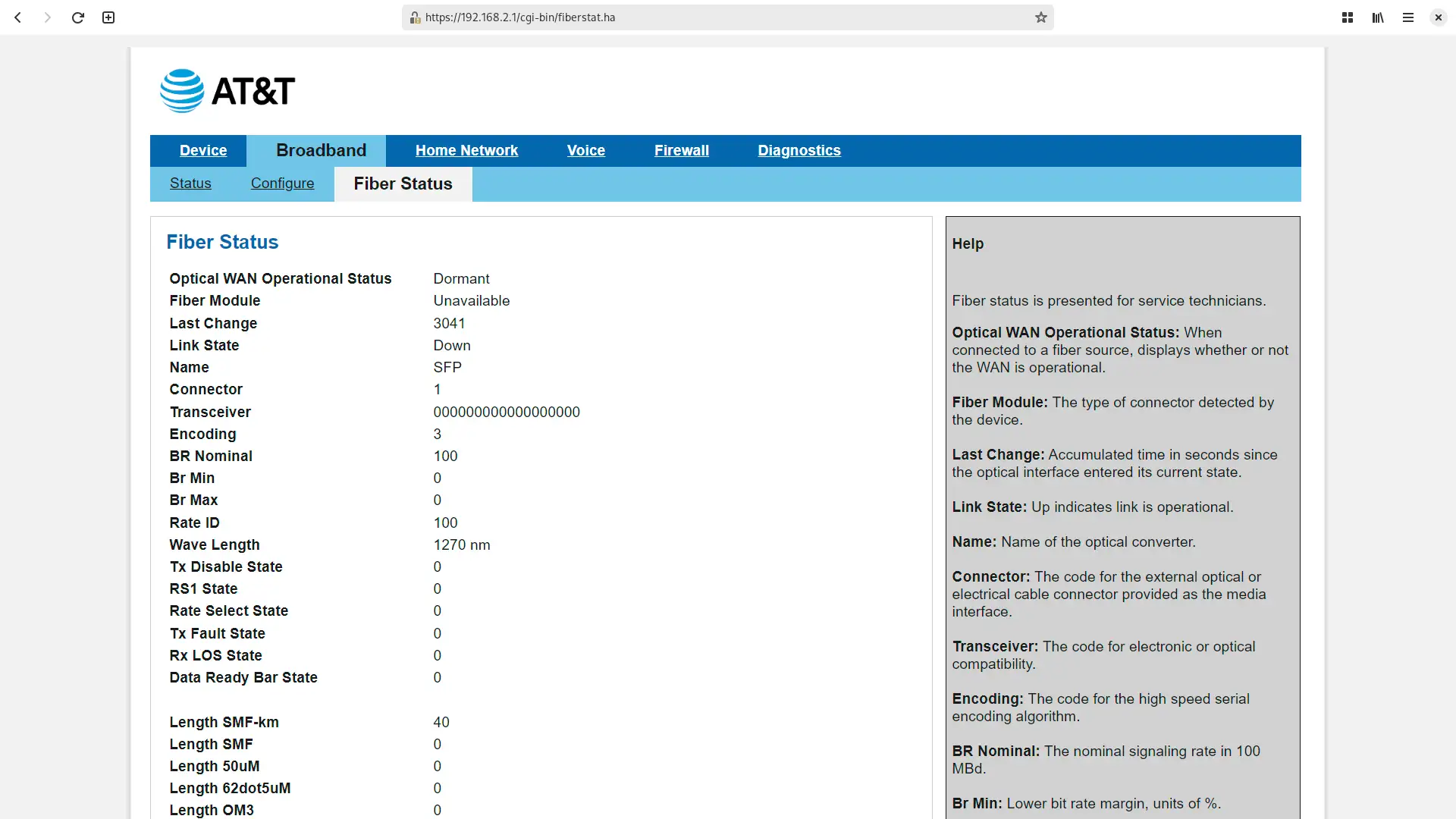
- Within a web browser, navigate to http://192.168.1.254/cgi-bin/fiberstat.ha
- Check the status listing for the Wave Length value. A reading of 1270 nm indicates an XGS-PON service.
Since the 6x series firmware, the fiber status page may report 0 (zero) for the Wave Length. Use the transceiver to help determine if you have XGS-PON service.
Via transceiver recommended

- Identify the bale clasp color. If orange/red
 , proceed.
 - Engage the bale clasp to release the latch and pull out the transceiver.
- Inspect the label for XGS-PON or 1270 TX.
If your wavelength is 1310 nm and/or the bale clasp is green  , you are using GPON and should follow the PON Madness guide instead.
Purchase ONT
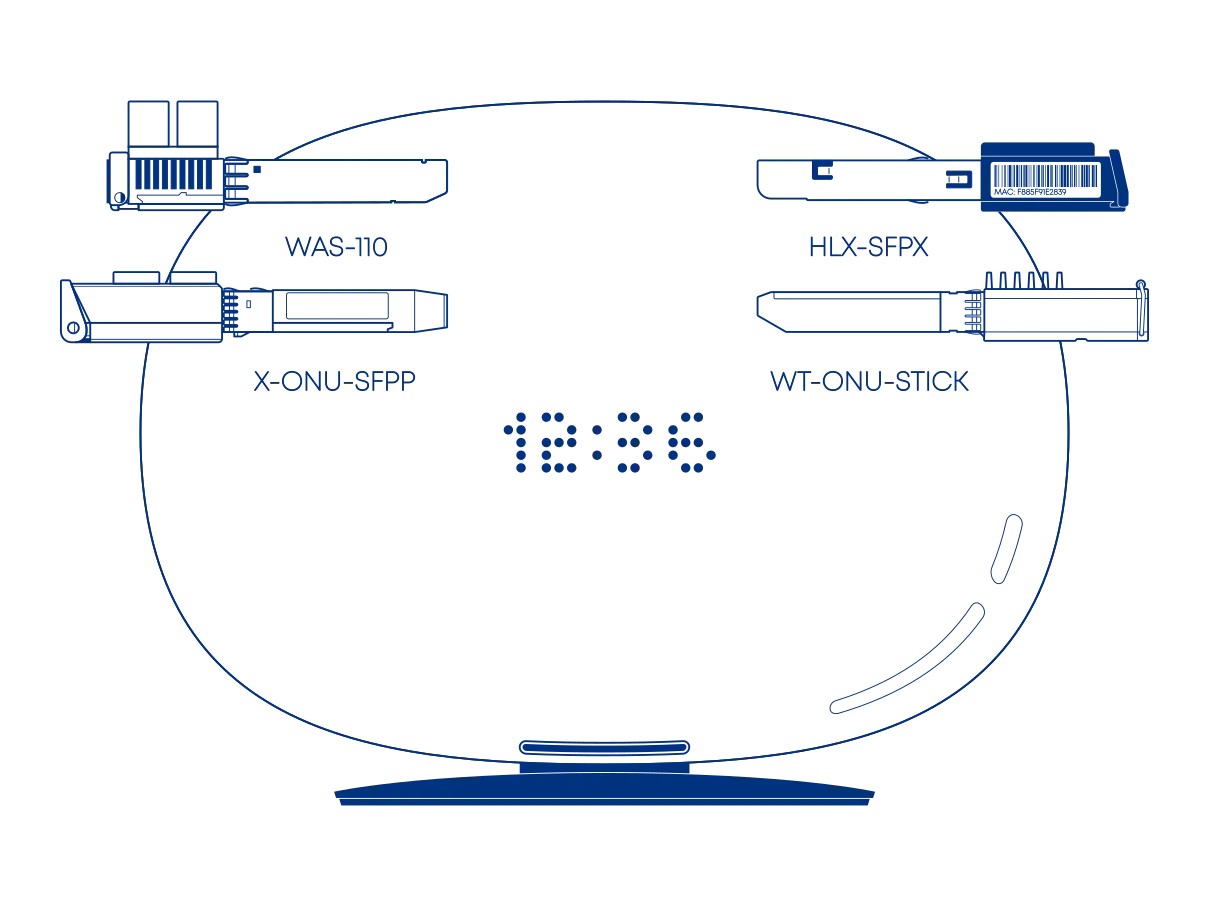
The WAS-110, X-ONU-SFPP, WT-ONU-STICK, and HLX-SFPX are available from select resellers worldwide; purchase at your discretion. We assume no responsibility or liability for the listed resellers.
Purchase SC/APC variant; if unavailable, add an SC/APC (female) to SC/UPC (male) 0dB attenuator for conversion.
AT&T and most North American ISPs terminate their fiber at the ONT using SC/APC (green) connectors.
Angled Physical Contact (APC) tips are polished to 8 degrees. This eliminates signal reflections on the fiber.
Never mismatch SC/APC (green) and SC/UPC (blue). This causes signal loss and can permanently damage the fiber faces.
HALNy issued a statement on 2025-09-23 concerning the firmware problems and resolution with the HLX-SFPX.
The HLX-SFPX firmware suffers from I/O errors that corrupt the overlay filesystem, soft-bricking the module.
First of all we want to thank you for all your effort during the tests of our product HLX-SFPX. We are impressed by all your experience and knowledge about GPON/XGS-PON ONTs and embedded devices
All HALNy products are designed to meet the ISP(Internet Service Providers) requirements. In terms of GPON/XGS-PON ONTs, based on the standard, they are fully managed by the ISP (from the OLT side)
Although our goal is to support ISPs - we decided to make some exception and implement some of the request from end users on best-effort basis.
Unlucky V7.0.6t1. version dedicated to end-users was released to fast to community - causing issue with unable to login on LAN side. The problem is not always present and few actions need to happen to reveal it. The device is not bricked, it will work, pass the traffic, just not possible to login. On version V7.0.7p2 please be careful when you copy the data from the other device. Wrong data may affects OMCI communication which cause not passing the traffic and login to fail.
We released the new firmware version V7.0.8pt2, which doesn't have this issue:
https://active-fw.fibrain.pl/aktywa/MATERIALY/HALNy/HLX-SFPX/FIRMWARE/HLX-SFPX_V7-0-8pt2.zip
We strongly recommend to update product to above version.
Again apologize for all inconvenience. We are really amazed with these community! Keep it going.
In case of any problem with HALNy products please contact with our support team: support@halny.com
-
WAS-110
-
HLX-SFPX
-
X-ONU-SFPP WAS-110 substitute
-
WT-ONU-STICK X-ONU-SFPP substitute

Due to ongoing tariffs, prioritize sourcing from domestic stock and sellers.
If you must purchase from China, be aware that additional duties and taxes will be incurred. A breakdown of the applicable rates and HTS (Harmonized Tariff Schedule) codes is provided below:
| HTS Code | Rate |
|---|---|
| 8517.62.0090 | 0% |
| 9903.01.32 | 0% |
| 9903.88.15 | 7.5% |
| 9903.01.24 | 20% |
Rates and HTS codes may change. Verify with the seller that the most current HTS codes are present on the customs declaration to prevent delays and unexpected fees.
If you see HTS code 9903.85.08 on your CBP Form 7501 (Entry Summary), you should file a dispute immediately through your courier's portal.
Pre-configuration
Before beginning the ONT configuration, ensure you have addressed the following networking requirements to enable successful communication with the PON.
DHCP MAC Spoofing
The ISP’s DHCP server identifies your connection via the Unique MAC address of the original equipment. To ensure the ISP "trusts" your new hardware immediately, you must clone the CGW452-400 MAC address onto your gateway's WAN physical interface.
The "Lease Window" Issue
ISP DHCP leases are often tied to a specific hardware ID for a set duration (30 minutes for AT&T). If you swap hardware without cloning the MAC, the server will detect an "unauthorized" device and refuse to issue a WAN IP until the old lease expires.
LCT Access Route
To install, upgrade, and configure the ONT, your gateway must be able to reach its Local Craft Terminal (LCT) interface. Follow the Accessing the ONT guide to set up the proper network routing between your gateway and the ONT management plane.
HLX-SFPX (HTTP Only)
The HLX-SFPX web server uses unencrypted HTTP and does not support HTTPS.
To access the web management interface, you may need to disable HTTPS-Only Mode (or similar "Always use secure connection" settings) in your browser.
For local management only. Avoid using over public or untrusted networks.
Install ONT firmware
Upgrading a pre-flashed 8311 WAS-110
If your WAS-110 came with 8311 firmware pre-installed, you do not need to follow the full installation guide below. Instead, you can go directly to the Supplementary Upgrades section to re-install the official 8311 community build to both A and B partitions.
Although not strictly necessary for AT&T, the 8311 community firmware is highly recommended for masquerading as the CGW452-400 and used for the remainder of the WAS-110 sections of this guide.
There are two (2) methods to install the 8311 community firmware onto the WAS-110, outlined in the following guides:
-
Method 1: recommended
-
Method 2
HALNy has provided a custom firmware with satisfactory customization for masquerading as the CGW452-400. It's available by request from HALNy and has been made available for download at:
https://active-fw.fibrain.pl/aktywa/MATERIALY/HALNy/TEST/HLX-SFPX_V7-0-8pt2l.zip


- Within a web browser, navigate to http://192.168.33.1/ and, if asked, input the useradmin web credentials.
- From the main navigation System drop-down, click Flash Firmware.
- From the Flash Firmware page, click Choose Image, browse for
G_ONU_HLX_SFPX_V7-0-8pt2l-e.bin, and click Flash to proceed with flashing the firwmare. - Follow the prompts.
The X-ONU-SFPP 8311 community firmware installation requires a two-step process and is more prone to failure or bricking.
This process is not thoroughly documented and can lead to a bricked device
- Step 1: Install the Azores bootloader
-
Skip past to the solution in the following issue tracker on how to install the Azores bootloader.
- Step 2: Multicast upgrade
-
Follow through the WAS-110 multicast upgrade and community firmware recovery guide to install the 8311 community firmware.
Getting Started Business Fiber Important Notes
The CGW452-400 is equipped with a cellular modem for limited backup internet functionality and is distributed with AT&T Business Fiber. It is imparitive that once you have all the information you need to transition from the CGW452-400 to a masquerade set-up that you remove power from the device so that your own ONU has no issues reacquiring your connection to the AT&T Fiber Network.
Configure ONT settings
To masquerade, you will need the original ONT serial number identifier (e.g., WNCA...) from your CGW452-400's fiber stats page, as well as the bottom label.
http://192.168.1.254/cgi-bin/fiberstat.ha
Use your preferred setup method and carefully follow the steps to avoid unnecessary downtime and troubleshooting:
Via web recommended


-
Within a web browser, navigate to https://192.168.11.1/cgi-bin/luci/admin/8311/config and, if asked, input your root password.
-
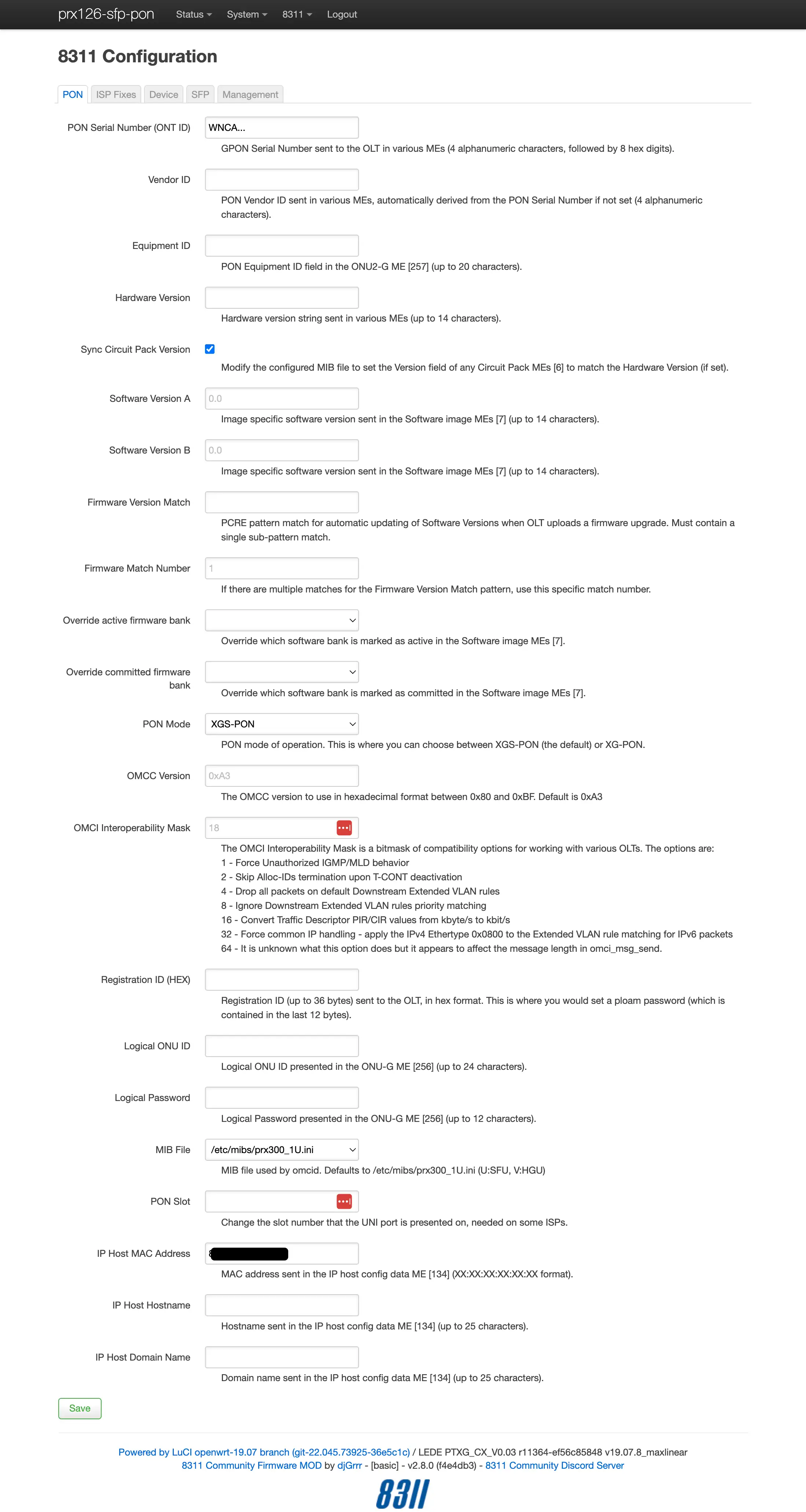
From the 8311 Configuration page, on the PON tab, fill in the configuration with the following values:
All attributes below are mandatory
Replace the ONT ID with the one found on the CGW452-400's label.
Attribute Value Remarks PON Serial Number (ONT ID) WNCA… Replace with the ONT ID from the bottom label Sync Circuit Pack Version 
MIB File /etc/mibs/prx300_1U.ini PPTP i.e. default value -
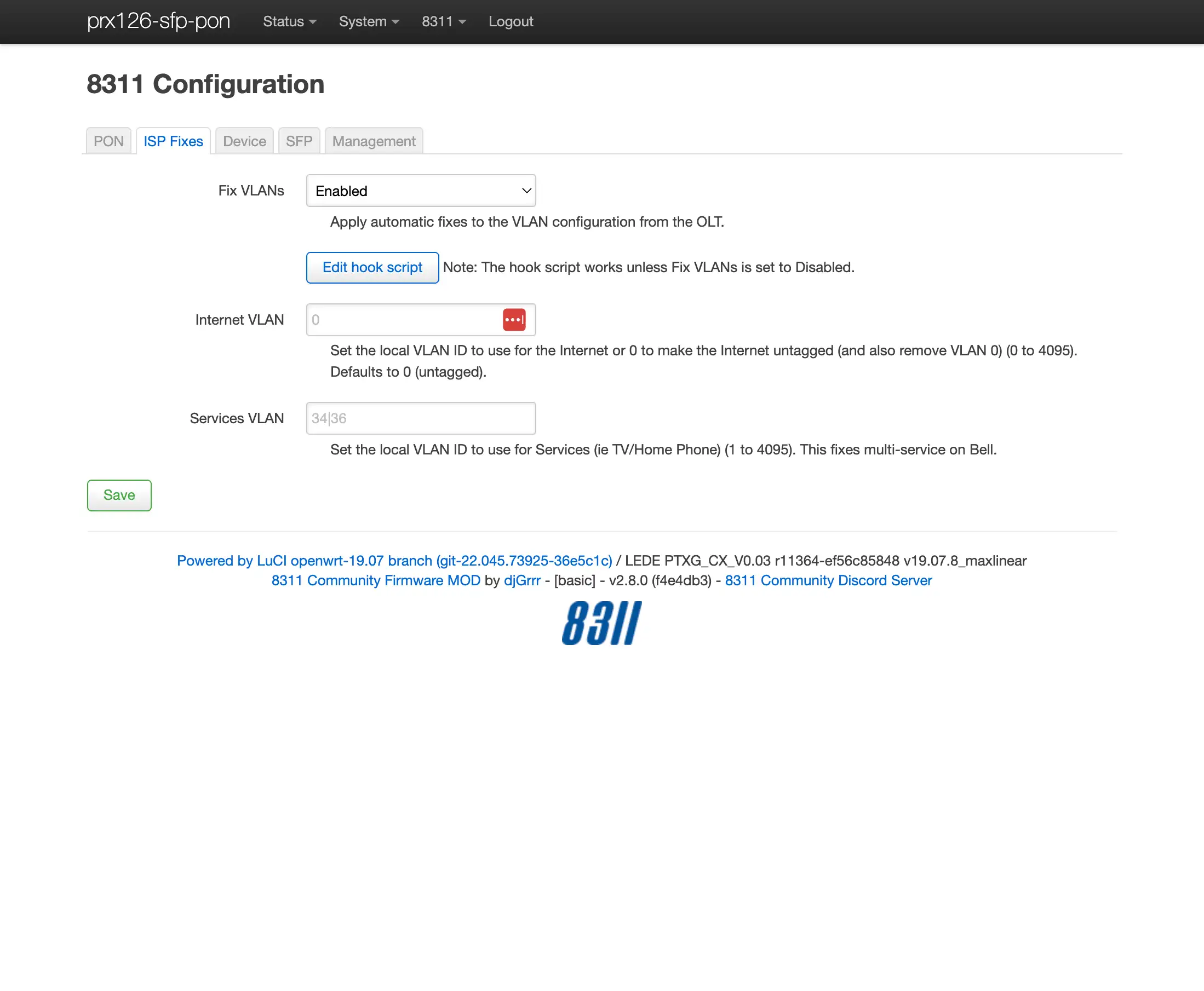
From the 8311 Configuration page, on the ISP Fixes tab, enable Fix VLANs from the drop-down.
-
Save changes and reboot from the System menu.
Via shell alternative
-
Login over secure shell (SSH).
ssh root@192.168.11.1 -
Configure the 8311 U-Boot environment.
All attributes below are mandatory
fwenv_set -8 gpon_sn WNCA...
fwenv_set -8 cp_hw_ver_sync 1
fwenv_set -8 fix_vlans 1
Additional details and variables are described at the original repository 1
/usr/sbin/fwenv_setis a helper script that executes/usr/sbin/fw_setenvtwice consecutively.The WAS-110 functions as an A/B system, requiring the U-Boot environment variables to be set twice, once for each environment.
The
-8option prefixes the U-Boot environment variable with8311_. -
Verify the 8311 U-boot environment and reboot.
fw_printenv | grep ^8311
reboot

- Within a web browser, navigate to http://192.168.33.1/cgi-bin/luci/admin/system/halny-settings/ and, if asked, input the useradmin web credentials.
-
From the hidden HALNy Settings page, in the Custom values section, fill in the configuration with the following values:
All attributes below are mandatory
Replace the PON Serial Number with the ONT ID found on the CGW452-400's label.
Parameter Value Remarks State Enable PON Serial Number WNCA… Replace with the ONT ID from the bottom label Sync Circuit Pack Version Enable -
Click Save & Reboot to apply the parameters.
Verify ONT connectivity
Do not be alarmed...
If you receive an e-mail and/or text informing you to:
Check your AT&T Fiber equipment since you might be offline currently.
The CGW452-400 sends telemetry data to better the customer experience.
Hot plug fiber cable
Avoid direct eye contact with the end of the fiber optic cable
After rebooting the WAS-110 or HLX-SFPX, safely remove the SC/APC fiber optic cable from the CGW452-400 and connect it to the WAS-110 or HLX-SFPX, confirmed by a double-clicking sound.

- Navigate to https://192.168.11.1/cgi-bin/luci/admin/status/overview and, if asked, input your root password.
- From the PON Status section, evaluate that the RX Power and TX Power are within spec.
For troubleshooting, please read the Troubleshoot connectivity issues with the WAS-110 guide's Optical status section.

- Within a web browser, navigate to http://192.168.33.1/ and, if asked, input the useradmin web credentials.
- From the main navigation Status drop-down, click PON Interface.
- From the Optical Information section, evaluate that the RX Power and TX Power are within spec.
Validate OLT authentication
Check for O5.1 PLOAM status
- Navigate to https://192.168.11.1/cgi-bin/luci/admin/status/overview and, if asked, input your root password.
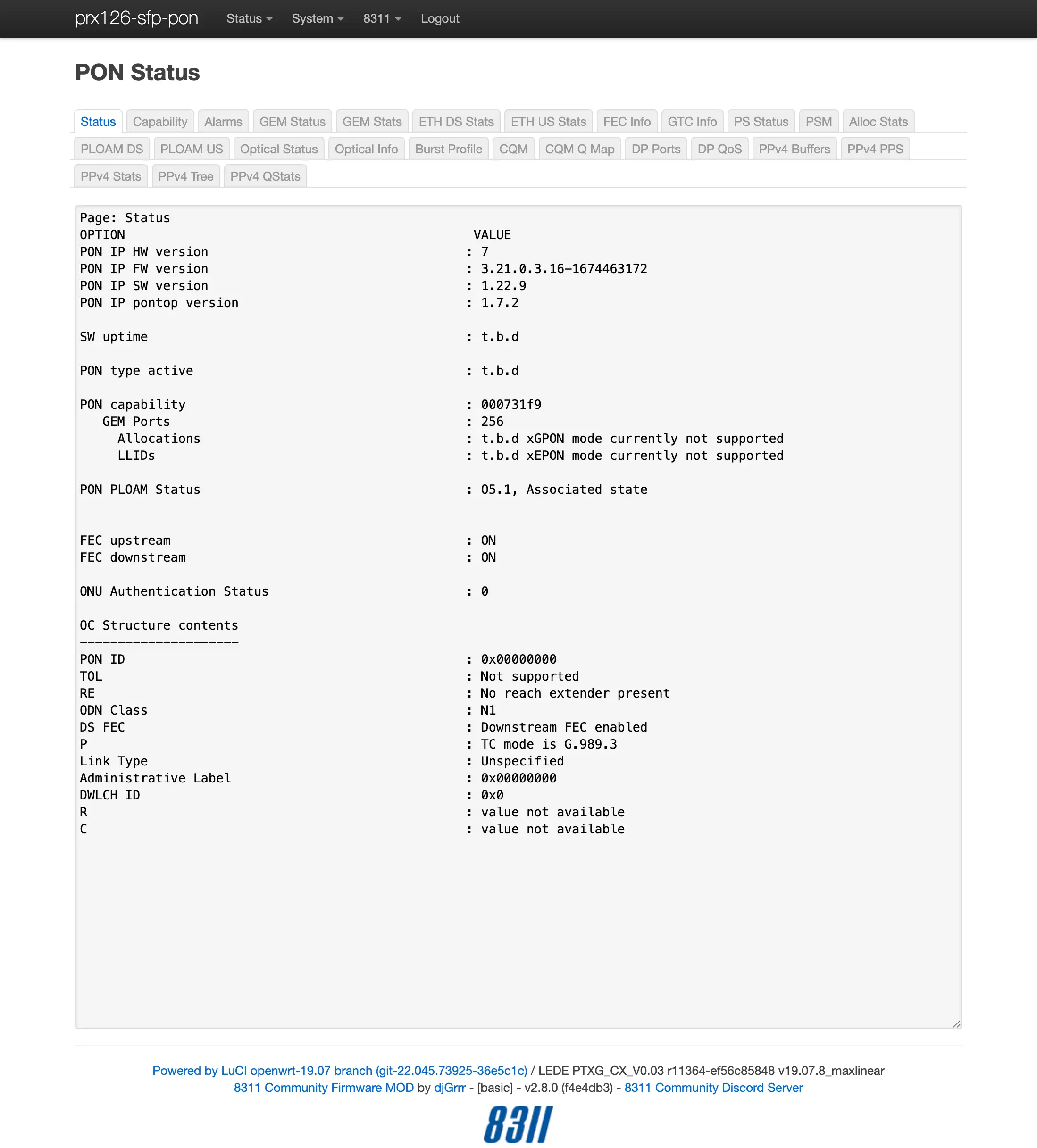
- From the PON Status section, verify that the PON PLOAM Status is in an 05.1, Associated state.
For troubleshooting, please read the Troubleshoot connectivity issues with the WAS-110 guide's PLOAM status section.
Check for OLT associated VLAN filters
- Navigate to https://192.168.11.1/cgi-bin/luci/admin/8311/vlans and, if asked, input your root password.
- From the VLAN Tables page, if the textarea states "No Extended VLAN Tables Detected", the ONT configuration has not satisfied the OLT.
- Within a web browser, navigate to http://192.168.33.1/ and, if asked, input the useradmin web credentials.
- From the main navigation Status drop-down, click PON Interface.
- From the Link Information section, verify that the PLOAM State is 05.
Router tips
- Configure the WAN interface for DHCP mode.
- Clone the CGW452-400
 MAC address on the router's DHCP WAN interface to avoid waiting for the 20 minute lease to expire.
Managed switch tips
- Filter or disable any Layer 2 management protocols (e.g., (R)STP) and discovery protocols (e.g., LLDP, CDP, FDP, MNDP, RoMON).
Troubleshooting
The CGW452-400 is unique in that it is almost primarily used in AT&T Business Fiber and not generally available "in the wild." While these settings work with the tested OLT, it may not entirely mean that this masquerade is able to be used by all customers with CGW452-400, keeping the WAS-110 settings up-to-date with any new discoveries may be beneficial but not strictly necessary.
For the purpose of showing a successful bypass, see below for screenshots of what your WAS-110 Web GUI should look like.
![PLOAM Status on 8311 [WAS-110] Page](../../masquerade-as-the-att-inc-cgw452-400-with-the-was-110/screenshot_cgw450_04.webp)